






No server configuration to maintain. Create your workspace, then add your machines when you are ready..
-
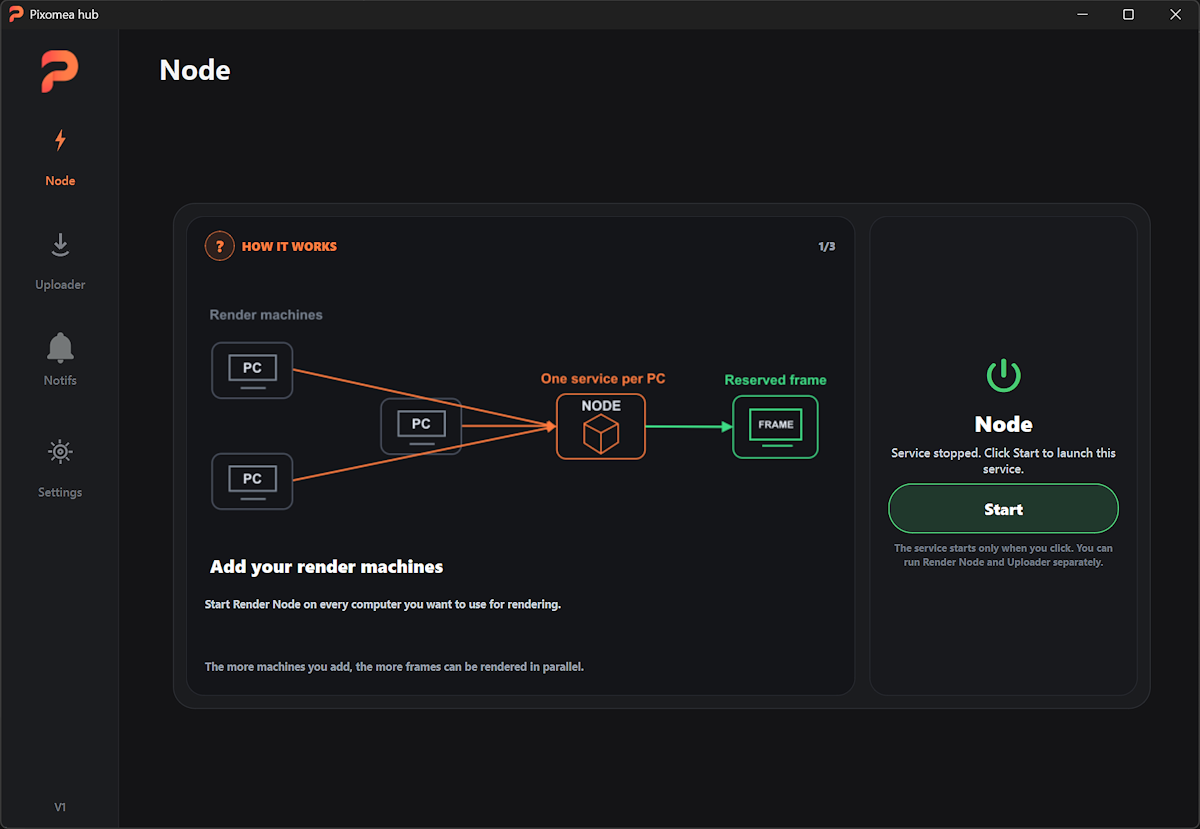
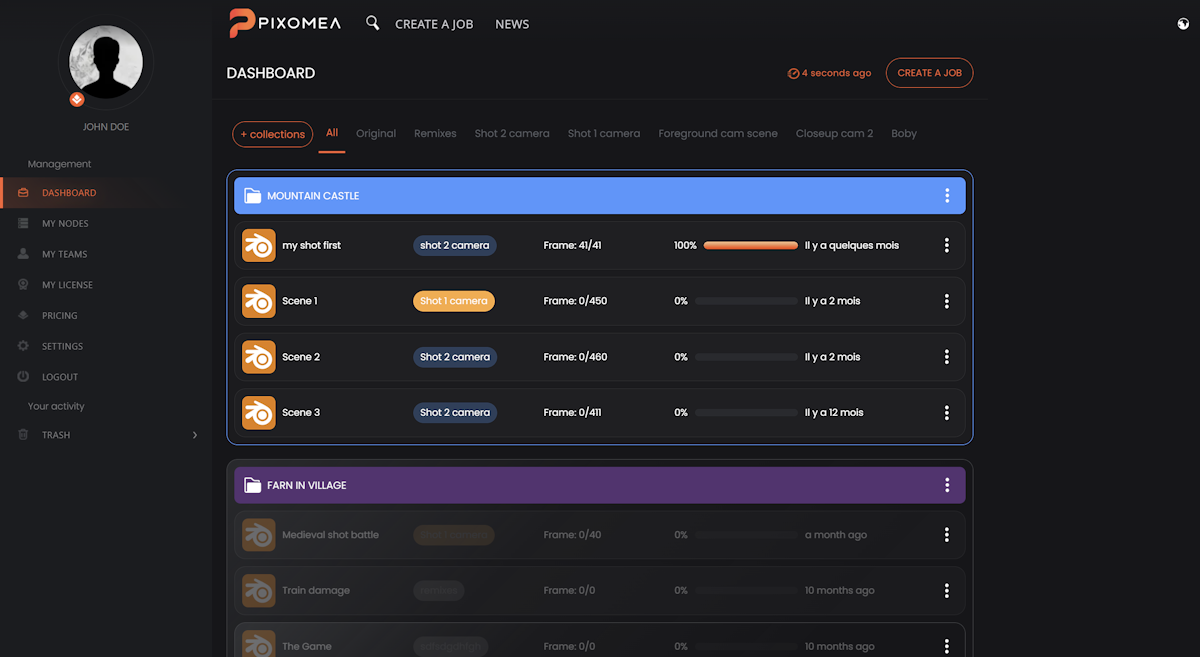

Your render farm, without the complexity.
Connect your machines, submit your jobs, and let Pixomea automatically distribute frames across your nodes.
-

-
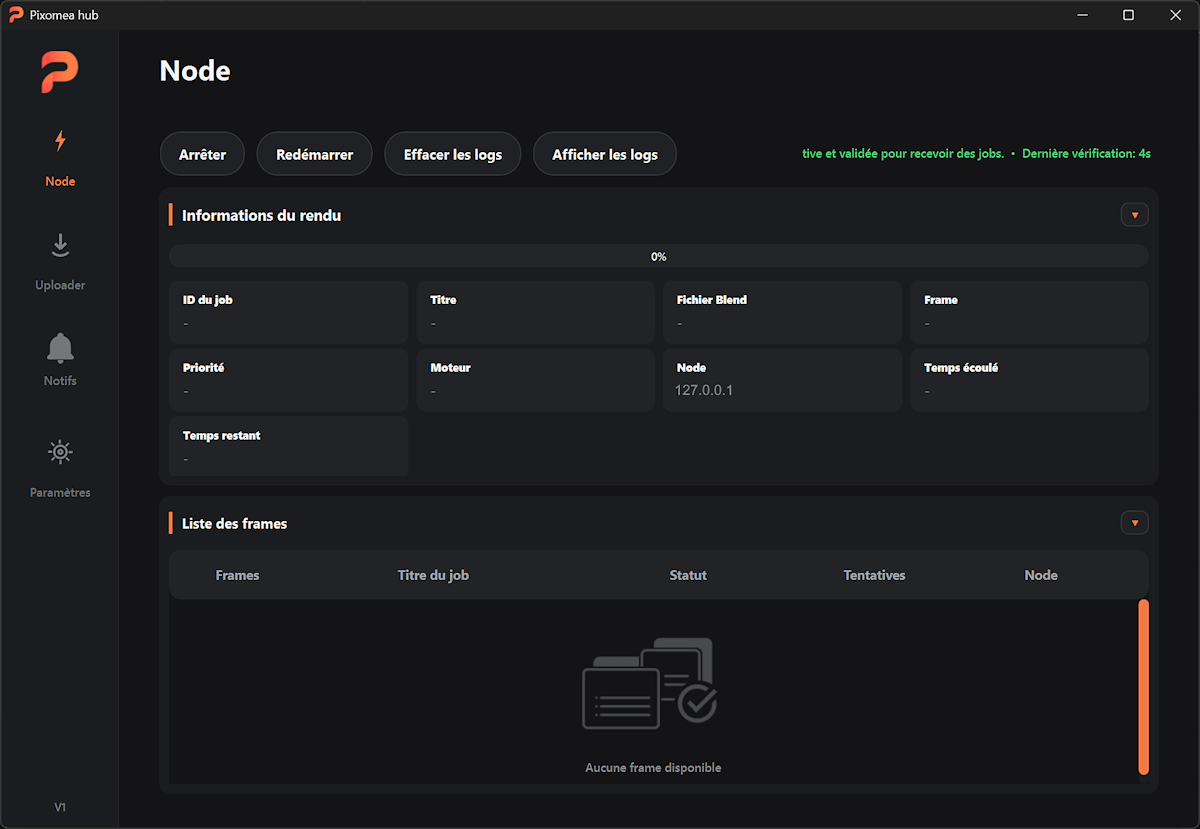
No server to manage
Pixomea manages the platform, jobs, licenses, and dashboard. You connect your nodes and launch your renders.
-
-
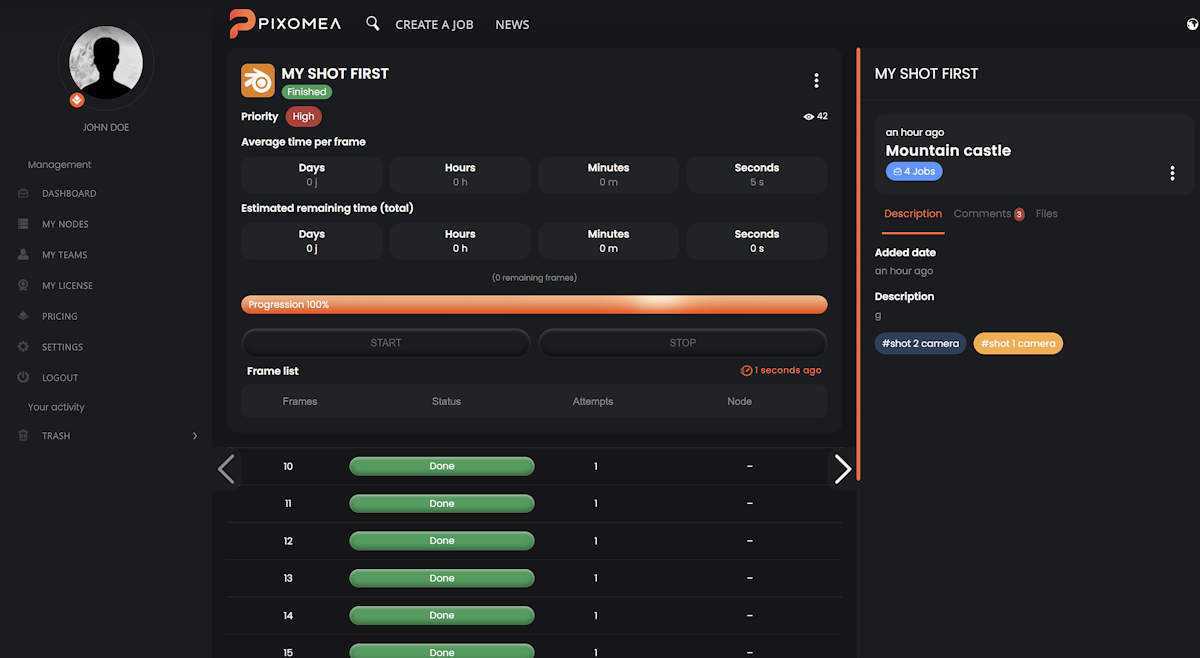
Real-time monitoring
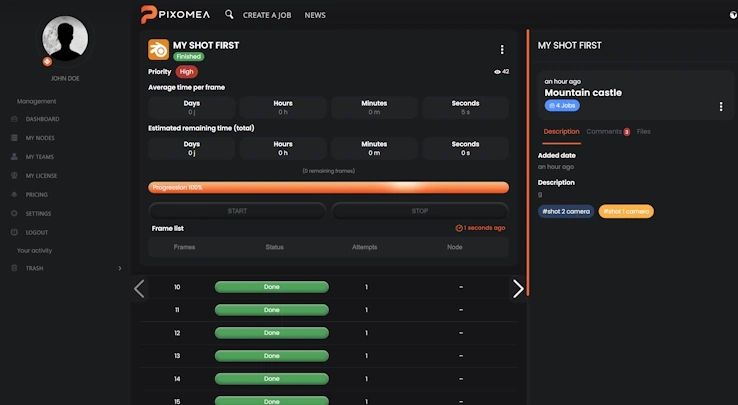
View the status of every job, frame, and node from your dashboard.
-
-
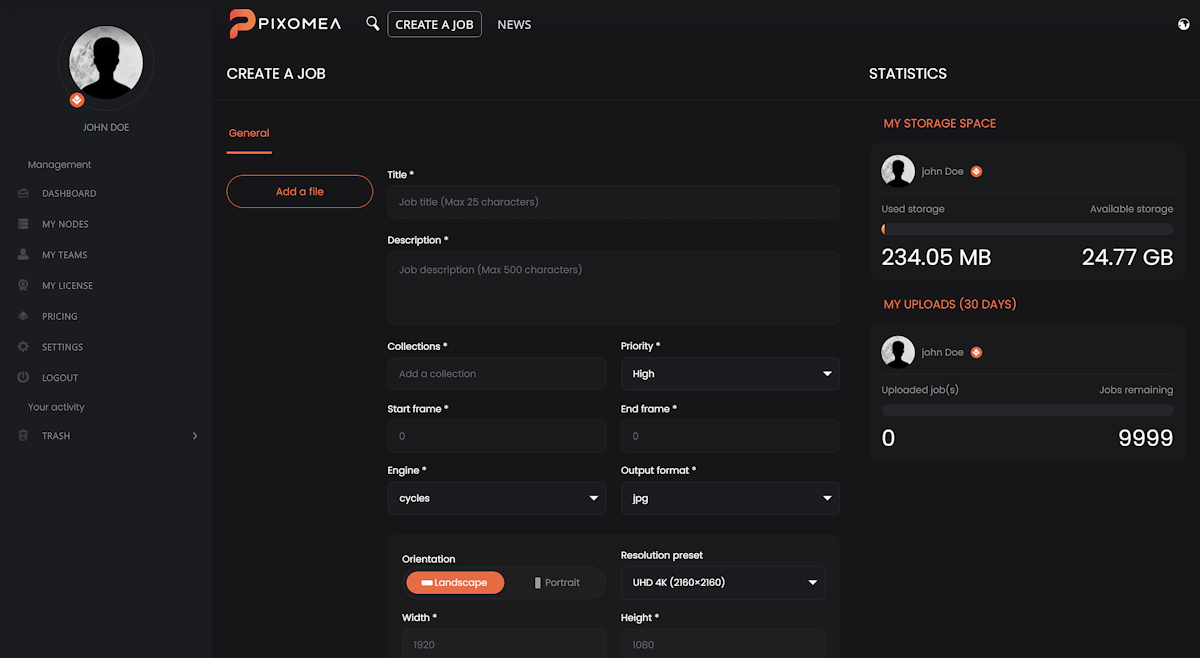
Upload. Launch. Retrieve.
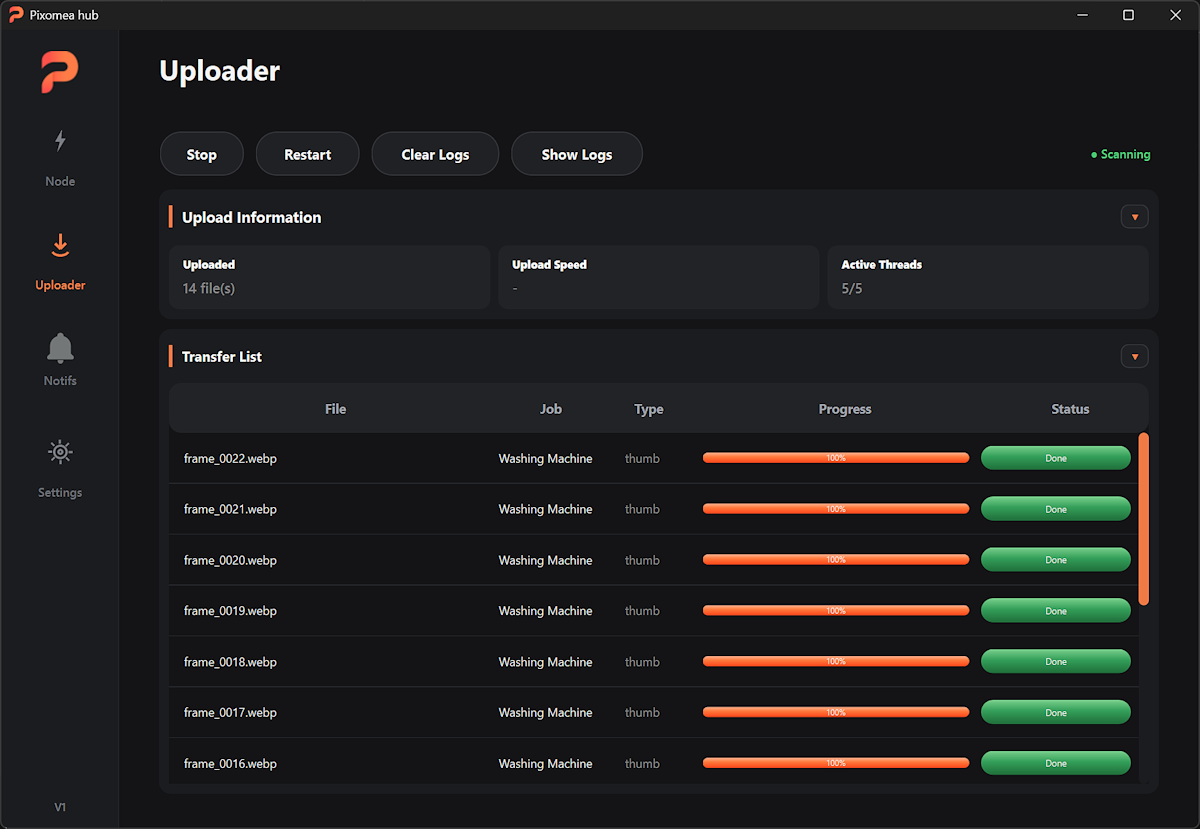
Drag in your files, launch your render jobs, and Pixomea handles the distribution.
-
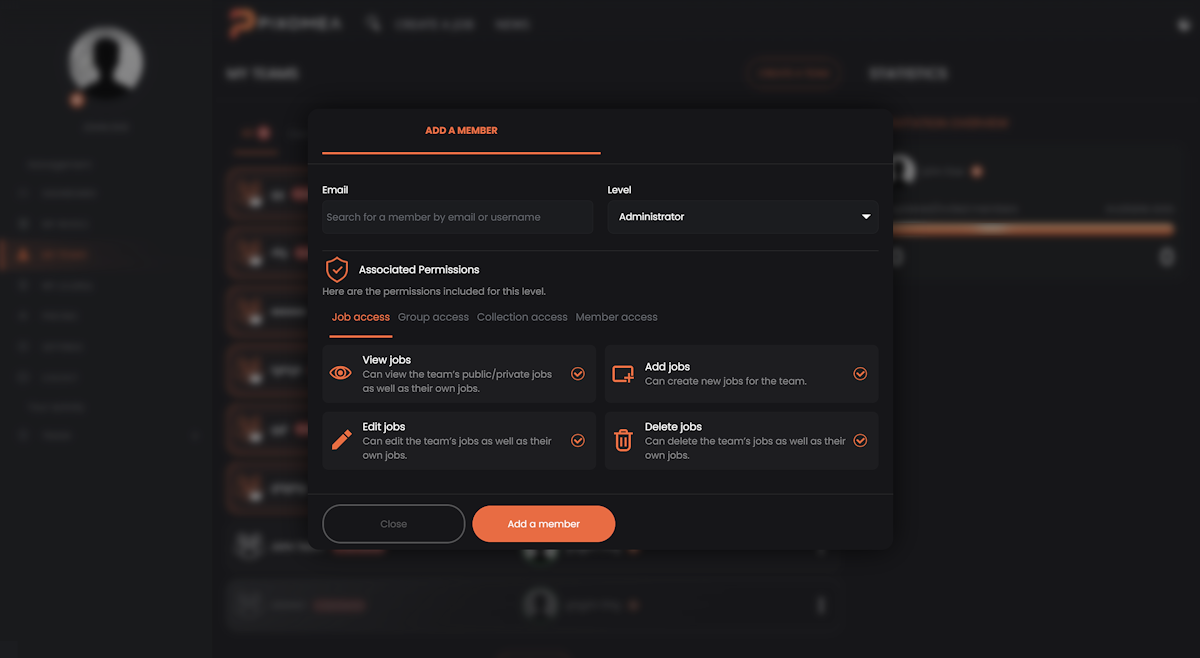
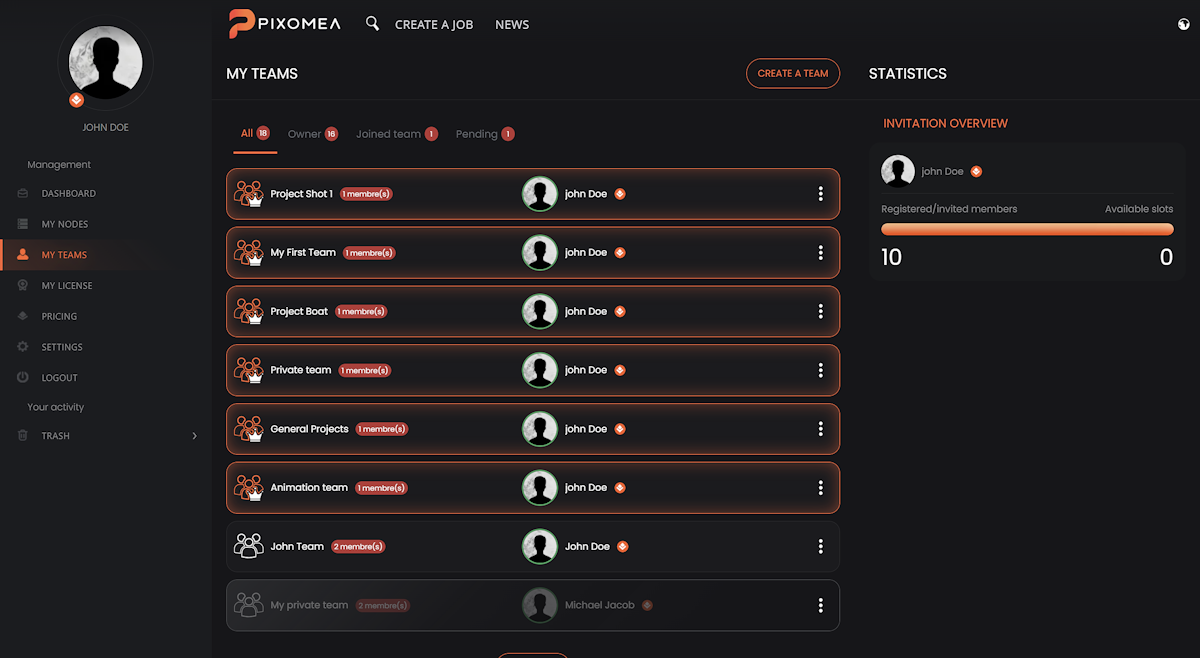
Built for 3D teams
Share your projects, comment on jobs, track progress, and distribute renders across your nodes.
Launch your render farm Start for free, connect your first machines, and test your first jobs.
How does it work? Connect your machines → launch a job → retrieve your renders
-
01Create your account
Access your dashboard and prepare your first render farm in just a few minutes.
-
02Install your nodes
Install the software on your render machines and connect them to your account.
-
03Upload your projects
Submit your blend files and choose your render options.
-
04Track and retrieve
Track progress live and retrieve your frames once rendering is complete.
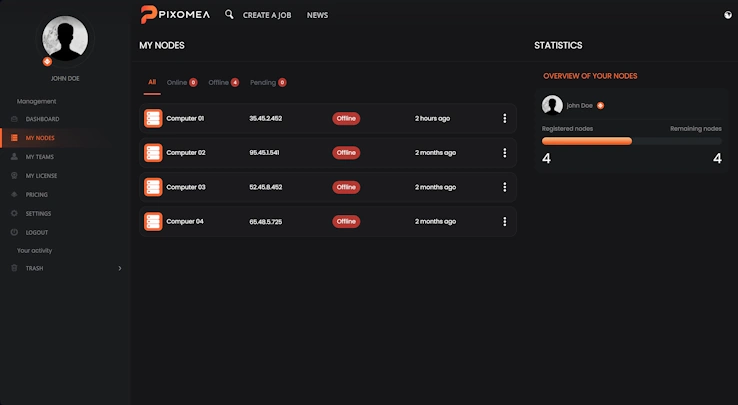
Pixomea registers your nodes, checks their status, and makes them available to receive render jobs..
Your jobs are prepared, distributed, and rendered automatically across available nodes..
Completed frames, errors, active nodes, results, and notifications: everything remains visible from your dashboard..
Manage your render farm Automatic distribution, real-time monitoring, and a simplified workflow.

Centralize your nodes
Stop managing your machines one by one. Pixomea connects your nodes, displays their status, and helps you use all your computing power from a single interface.
Nodes
Monitoring
Dashboard
Quota
Tracking
Collaboration

Protect your projects
Your 3D files remain accessible only to authorized users. Pixomea relies on controlled access, secure links, and clear permission management.
Local storage
Amazon AWS
Privacy
Secure access
GDPR
Permissions
Security

Connected to your pipeline
Pixomea integrates into your existing workflow. Support for additional 3D software is planned to expand distributed rendering and automation possibilities.
Blender
Cycles
Eevee
3ds Max (planned)
Maya (planned)
Unreal (planned)
C4D (planned)

Track every render
Stop launching renders blindly. Track every job, frame, and node in real time to quickly identify errors, inactive machines, or completed frames.
Statistics
Live tracking
History
Reports
Management
Automate your jobs
Automate your render queue, distribute frames across your nodes, and avoid fragile scripts, manual copies, or forgotten restarts.
Automation
Webhook
JSON API
Scripts
Integration

Scale your farm
Add nodes as needed and gradually increase your rendering power. Pixomea is designed for freelancers, small teams, and studios that want to scale without complexity.
Scalable
Hybrid cloud
Deployment
Infrastructure
Production
A frictionless workflow Let Pixomea handle the distribution
Focus on your 3D scenes. Pixomea distributes jobs, tracks frames, and helps you retrieve your results without unnecessary manual work.
Everything under control Jobs, frames, nodes, and renders centralized in one interface.
Compatible with your 3D tools A workflow designed to evolve with your pipeline
Blender
They simplified their renders and regained control of their 3D production

Ambocc Studio
Before Pixomea, we launched renders machine by machine. Now jobs are distributed automatically, and we save time on every project.

ThunderstormFx
I wanted to use my machines without building a complicated infrastructure. Pixomea allowed me to turn my setup into a small render farm.

Ultravision
Frame and node tracking makes production much clearer. We immediately see what is progressing, what is stuck, and what is finished.

RendrFx
Our in-house scripts were becoming hard to maintain. With Pixomea, job distribution is cleaner and easier to monitor.

Akylone
We had several machines available but no simple solution to use them together. Pixomea made our render queue much smoother.

Kiosk group
Launching a long render is less stressful when you can monitor every node and every frame from a single interface.
Ready to test? Try Pixomea with your own machines and quickly see the improvement in your renders.
Frequently Asked Questions Everything you need to know before launching your renders
- What is Pixomea?
Pixomea is a 3D render farm management solution. It connects your machines, distributes rendering jobs across available nodes, tracks every frame in real time, and centralizes your results in an easy-to-use dashboard.
- How does it work?
Install the software on your machines, submit your project from the dashboard, and Pixomea automatically distributes the frames across your nodes. Each node renders its assigned frames, returns the results, and you can monitor the entire process in real time.
- Do I need a server?
No. Pixomea already manages the central platform, database, jobs, licenses, and dashboard. You do not need to maintain a server 24/7—simply install the software on your render machines, connect them to your account, and launch your jobs.
- How do I install my nodes?
Create your account, download the software, and install it on the machines you want to use for rendering. Once connected to your account, they will appear in your dashboard and be ready to receive jobs.
- What is a node?
A node is a machine connected to your Pixomea account and available to render frames. It can be a PC, workstation, or server used to accelerate your rendering.
- Do my nodes need to stay online?
Your nodes must remain powered on and connected whenever they need to receive or process rendering jobs. If a node goes offline, it is marked as inactive in your dashboard and will no longer receive new frames until it reconnects.
- Which software is supported?
Currently, Pixomea is primarily designed for Blender. Support for additional 3D software is planned, including Unreal Engine, 3ds Max, Maya, and Cinema 4D, to expand distributed rendering and studio pipeline integration.
- Which platforms are supported?
The Pixomea node application is currently developed primarily for Windows. The dashboard is accessible from any web browser. Support for additional platforms may be added based on user demand and supported rendering software.
- How do floating licenses work?
Pixomea licenses are floating per node. A license is consumed only when a machine is registered as an active node on your account. If you remove or disable a node, the license becomes available again and can be assigned to another machine.
- Can I transfer a license?
Yes. Simply remove or disable the old node from your dashboard, then connect the new machine to your account. The released license can immediately be used on the new node without any additional purchase.
- Can I replace a machine?
Yes. If you replace your PC, workstation, or server, simply remove the old node from your dashboard and connect the new machine. The released license will automatically become available for the new node.
- What happens if a node goes offline?
If a node disconnects, it appears as inactive in the dashboard. Pixomea continues tracking all jobs and frames, making it easy to identify offline machines, rendering errors, or stalled jobs.
- What happens if my license expires?
License expiration does not automatically delete your projects, jobs, comments, teams, or configuration. Your data remains stored according to your plan. You simply will not be able to launch new renders or use your nodes until your license is renewed.
- How does the free plan work?
The Pixomea Free plan is free forever. It allows you to test and use the platform with limits suitable for small workloads, including limits on machines, storage, team members, jobs, or included resources depending on the plan. These quotas reset every 30 days.
- How do paid plans work?
Paid plans offer higher limits than the free plan, including more nodes, more storage, and more team members. Quotas are renewed every 30 days according to your subscription.
- How do licenses work?
Each Pixomea plan defines the resources available for your account: number of nodes, storage capacity, users, features, and production limits. Licenses are floating per node, meaning that disabling or removing a node immediately frees the license for another machine.
- What happens if I reach my limits?
If you reach your plan limits, some actions may be restricted until your quotas are renewed or you upgrade to a higher plan. Your existing projects remain accessible according to your storage policy.
- Can I work as a team?
Yes. Pixomea includes a collaboration system that allows multiple users to organize production together. Invite your team, share projects, and monitor jobs from a shared workspace.
- Which team roles are available?
The team system provides three permission levels: Administrator, Moderator, and Member. Administrators manage the team and settings, Moderators help organize projects and jobs, while Members participate according to the permissions granted.
- Can I comment on jobs?
Yes. Every job supports comments to simplify communication between team members. Feedback, technical notes, and approvals remain attached directly to the corresponding render.
- Is there an API?
Yes. Pixomea provides a JSON API based on PHP endpoints to retrieve information about your account, jobs, nodes, and usage. Developers can build internal tools, custom dashboards, automation workflows, or plugins adapted to their pipeline.
- Can I build my own tools?
Yes. The API allows you to use Pixomea production data to build custom job trackers, studio pipeline integrations, internal notifications, statistics dashboards, plugins, or any workflow-specific tools.
- Are my files secure?
Yes. Your files are never publicly exposed. Pixomea uses controlled access, account permissions, and secure links to protect your projects, renders, and results.
- Is it suitable for large projects?
Yes. Pixomea distributes frames across multiple nodes to maximize your available computing power. The more rendering nodes you connect, the faster your productions can be completed.
- Is it suitable for freelancers?
Yes. Pixomea is designed for 3D artists, freelancers, and small teams who already own multiple machines but want to stop managing renders manually. Start small and expand your farm as your production grows.
- Is it suitable for teams?
Yes. Pixomea includes a collaboration system with Administrator, Moderator, and Member roles. Your team can monitor jobs, organize projects, and comment on renders directly from the platform.
- How is it different from a traditional render farm?
Pixomea is more than a rendering launcher. It connects your machines, automatically distributes frames, monitors nodes in real time, centralizes jobs, results, comments, and team collaboration. The goal is to make render farm management simple—even without complex technical infrastructure.
- How is it different from a cloud render farm?
With Pixomea, you primarily use your own machines. You are not entirely dependent on external services charging per frame or rendering hour. You retain full control over your hardware, nodes, and workflow while benefiting from a centralized dashboard.
- Is it an alternative to complex render management tools?
Pixomea is designed as a simpler solution for freelancers, 3D artists, and small teams who want distributed rendering without maintaining complex server infrastructure. Rather than replacing advanced studio pipelines, it offers a straightforward way to connect machines, launch jobs, and monitor frames from a centralized dashboard.
- Can I try it for free?
Yes. You can test Pixomea for free using your own machines and projects to evaluate the workflow, frame distribution, and real-time monitoring.
- Is support available?
Yes. Support is available to help you install your nodes, understand rendering jobs, troubleshoot issues, and gradually optimize your rendering workflow.
- Which payment methods are accepted?
Payments are currently processed through PayPal. You can use your PayPal account or any payment methods offered by PayPal depending on your country and account.
- Where can I download my invoices?
Your invoices are available in your Subscription panel. There you can view your billing information, download invoices, and review your subscription history.
- Can I add my VAT information?
Yes. Enter your company name, address, country, and—if applicable—your VAT number in your account billing information. Your invoices will be generated using these details.
- How is VAT calculated?
VAT is calculated automatically based on the information provided in your account, including your country, customer type (business or individual), billing address, and VAT number if applicable. Please verify your information before confirming your subscription.
- Can I monitor my usage?
Yes. Your Subscription panel provides usage statistics related to your plan, including quota usage, nodes, jobs, and the resources included in your subscription.
- Can I change my subscription?
You can manage your subscription from your Subscription panel. Depending on your plan, you can review your offer, monitor usage, renew your license, or update certain account information.
- How do I upgrade to a higher plan?
From your Subscription panel, you can review your current plan, check your limits, and upgrade to a plan with more nodes, storage, users, or production capacity whenever needed.
- What should I do if my payment fails?
If a payment fails, first check your PayPal account, payment method, and billing information. If the issue persists, contact support with a screenshot of the error message and your transaction details.
 Associated permissions


